Use the player toolbar
The controls at the top of the OpenBeam player: fullscreen, mouse capture, bitrate, Record, Content, Stats, Latency test and Leave, with keyboard shortcuts.
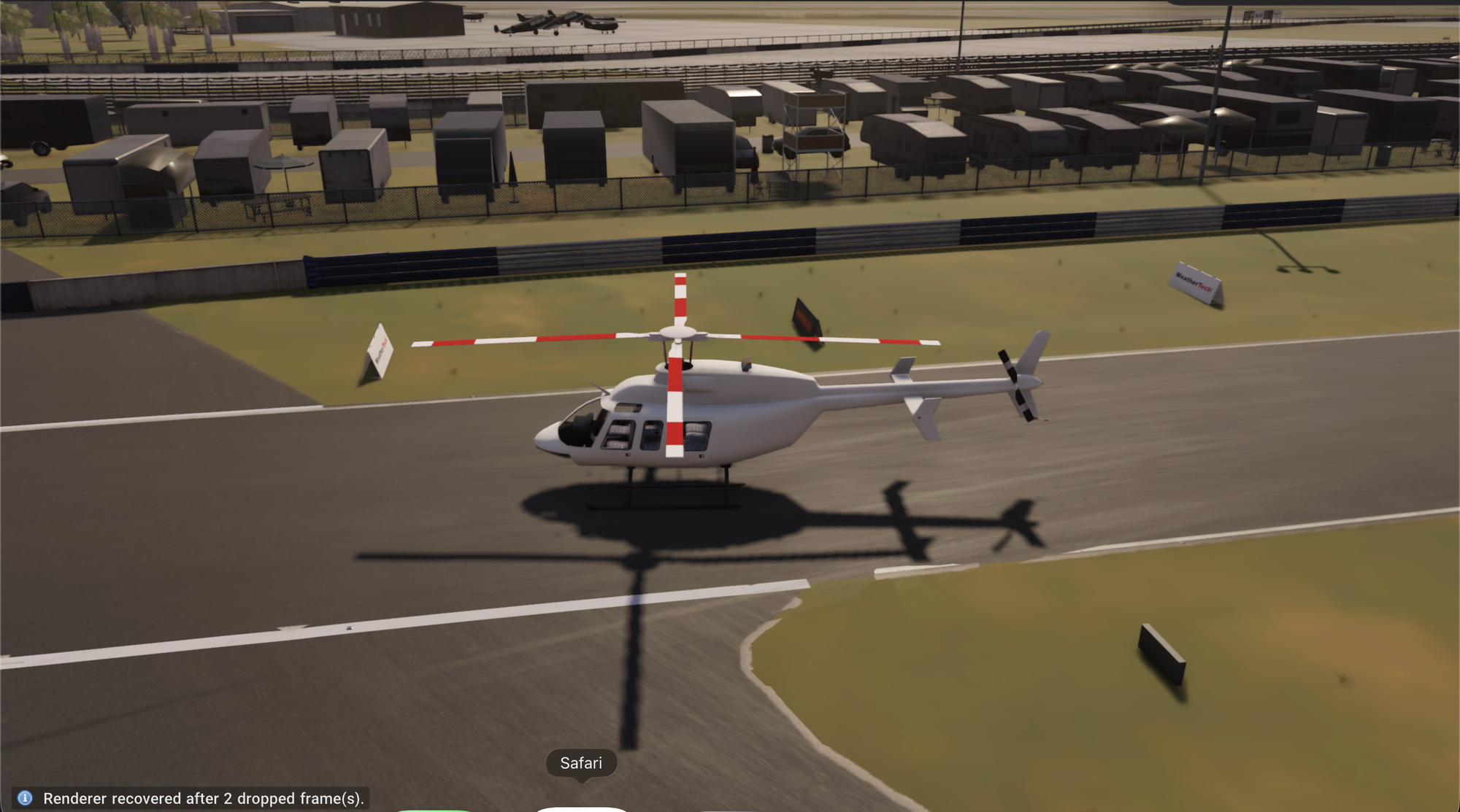
The player is the browser tab your session streams into. Its toolbar sits at the top edge of the tab. While you play it slides out of the way; move the pointer to the top of the window to bring it back. It stays visible while the session is connecting.
On the left, a status light and label show the state of the stream, such as connecting or playing.
The controls
| Control | What it does |
|---|---|
| Fullscreen | Fills the screen with the game. In Chrome and Edge it also captures keys like Escape and Alt+Tab, so they reach the game. |
| Capture mouse | Locks the pointer to the game, for driving and camera control. Turn it off to use the pointer normally. |
| Bitrate | The video quality. Auto bitrate adjusts to your connection; or pick 5, 10, 20, 30 or 50 Mbps. Lower it if the picture stutters. |
| Record | Starts recording the video with your controls and the engine data. Press it again to stop and save. See Record a run and download its data. |
| Content | Opens the Your content panel: add, install and load maps and vehicles, and find this session's recordings. See Load maps and vehicles in a session. |
| Stats | Shows stream statistics, such as frame rate and bitrate. |
| Latency test | Runs a click-to-photon probe: it measures how long an input takes to show up in the picture. |
| Leave | Ends the session. The game closes and you can close the tab. |
Keyboard shortcuts
Player shortcuts use Ctrl+Alt+Shift. These key combinations are never sent to the game.
| Shortcut | Action |
|---|---|
| Ctrl+Alt+Shift+F | Fullscreen on or off |
| Ctrl+Alt+Shift+M | Capture mouse on or off |
| Ctrl+Alt+Shift+S | Show or hide stats |
| Ctrl+Alt+Shift+L | Run the latency test |
| Ctrl+Alt+Shift+Q | Release the mouse and leave fullscreen |
Leaving versus closing the tab
Leave ends your session at once. Closing the tab, or losing your connection, keeps the session for 5 minutes so you can rejoin it from Play. See Session, usage and storage limits.